Imagine you want to sign into a streaming app on your smart TV. The TV displays a short code, like “X7-B9”, and tells you to visit a website on your phone, enter that code, and log in. Once you do, your TV connects automatically without you needing to type a long password using a clunky TV remote. This convenience feature relies on a technology known as the Device Code Flow. Here’s how how to prevent device code phishing attacks.
While this system makes logging in across different gadgets seamless, cybercriminals have found a way to turn it against everyday users. This attack strategy is called device code phishing.
How the trap works
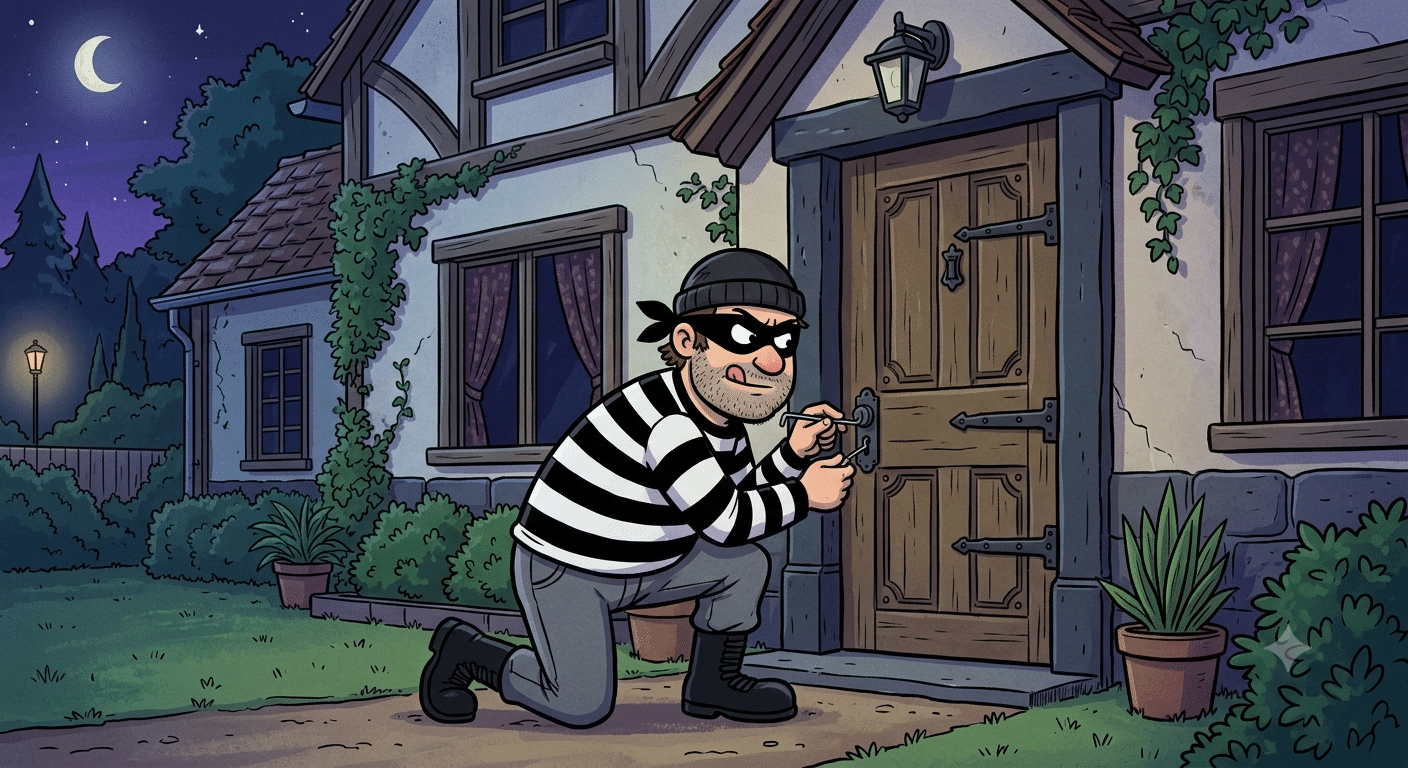
Think of device code phishing as a scammer giving you a real key to your own front door. But they ask you to turn the lock for them.
Typically, an attacker generates a legitimate login code from a service like Microsoft or Google. They use their own computer. They then send you an urgent email, text, or pop-up message. The message might claim your account is about to be suspended, or that an important file requires your immediate review.
Inside that message, the attacker provides the real login web link alongside the code they just generated. Because the web link points to an official, trustworthy website, traditional spam filters often let it pass right through.
If you fall for the trick, you click the real link and enter the provided code. By doing so, you are essentially telling the service, “Yes, that secondary device trying to sign in is mine, and I approve it.” In reality, you just unlocked the front door for the hacker’s computer. They now have full access to your account, often bypassing traditional two-factor authentication entirely.
How to prevent device code phishing attacks
Spotting these attacks comes down to recognizing when a login request did not originate from your own actions. Here are three simple rules to keep your accounts secure.
Never Approve Unsolicited Requests
The most critical rule is simple: only enter a device code if you personally initiated the login process on another screen just seconds prior. If a code arrives in your email inbox, via text message, or in an unexpected pop-up, ignore it completely. Authentic device codes are only meant to be read off a screen you are actively looking at, such as your television, smart speaker, or a desktop application.
Check the Sign-In Location and Details
When you enter a device code on an official login page, the screen will usually display information about the device requesting access, including its approximate physical location or device type. Take a moment to read this information carefully. If you are sitting in London using an iPad, but the prompt says a Windows computer in another country is requesting access, cancel the request immediately.
Report Suspicious Activity Promptly
If you realize you entered a code by mistake, act quickly. Log into your account settings from a secure device, go to your active sessions or security tab, and choose the option to sign out of all devices. Changing your password right away will also terminate any access the attacker managed to gain.
Leave a Reply